How to Upload Your PCO Documents to the Uber App (Step-by-Step)
Introduction
Great, you have your PCO license; very exciting, but so many new drivers get stuck at the point of uploading their documents to the Uber app. There is not much to it, but there are common mistakes that could cause delays or refusal.
This article explains the process step by step. Whenever you socialise or submit an application, you will find yourself prepared to go seeded using the base mode.
Besides this, we will disclose whether buying or renting a PCO Car from the PCO car hire company will be a smart choice for you. Lets Start.
What Documents Do You Need Before You Start
You will need to get ready before you start the app. The main causes of delays are not having the right documents or not having full documents.
- PCO (Private Hire Vehicle) licence — issued by TfL (Transport for London)
- DVLA driving licence — both the photocard and the online check code
- Proof of vehicle insurance — must be valid PCO/private hire insurance, not a standard personal policy
- MOT certificate — your vehicle must have a current, valid MOT
- Vehicle logbook (V5C) — showing you as the registered keeper or owner
- Private Hire Vehicle (PHV) licence — the vehicle licence issued by TfL, separate from your driver licence
- Profile photo — clear, passport-style, taken against a plain background
💡 Tip: All documents need to be updated. Also, Uber may not accept your document during the review time, even if your document has expired for a few days. If anything is close to the expiry, renew it before applying.
Start Your Journey with the MG HS 2024 – a premium PCO rental car from MKL PCO Car Hire
Step-by-Step: How to Upload Documents on the Uber Driver App
Follow these steps carefully. The UI-UX is slightly different, but the steps are pretty much identical.
- Download and open the Uber/Blot Driver app—Download from the App Store, or Google Play the Driver app, not the passenger app! Sign up or log in.
- Go to your account menu — Press the three lines(menu) from the upper left corner of the screen.
- Select “Documents” — In the menu, tap Documents. You’ll see a list of everything Uber requires. Each item will show a status: pending, submitted, approved, or action required.
- Tap on each document category — Press on the first document (your PCO licence, for example). It will prompt you to open the Camera or choose from the gallery.
- Take or upload a clear photo — Mobile camera in appropriate light conditions. Also, no cut-off edges, nothing that casts shadows over texts or glitters like a reflection, and a complete document showing.
- Enter the document details — After uploading the image, it will usually ask you to type both the document number and the expiration date manually. Double-check that these match your document exactly.
- Submit and wait for review — The document will show as Under Review. Uber typically takes 1–3 business days to verify, though this can take longer during busy periods.
- Repeat for all remaining documents — Work through every item on the list. The app won’t progress your account until everything has been submitted.
Common Reasons Uber Rejects Documents
- Even experienced drivers get caught out by these. Here’s what to watch for:
- Blurry or dark photos — the most common reason; always photograph in natural or bright light
- Expired documents — Uber checks expiry dates carefully; renew anything close to running out
- Wrong document type —for example, a regular motor insurance instead of a PCO/private hire policy
- Details that don’t match —name, address, or licence number don't match on your documents
- Cut-off edges — corners or expiry dates aren’t visible in the photo
- Photo of a screen — no document photos on a computer or smartphone; use the original or scanned document
What to Do If Your Documents Are Rejected
Rejections are common and easy to fix in most cases. Here’s how to handle them:
1. Check the rejection reason in the app- Go to Documents and tap the rejected item. Uber usually provides a short explanation of what needs to be corrected.
2. Fix the problem and re-upload- If it's a bad photo, do it again in good light. If it's an expired document and so on, renew it— because if you upload the same expired copy, it does not work.
3. Re-upload carefully- Show all four corners, and the entire text is fully readable. Optimal camera quality setting on your phone
4. Contact Uber support if needed- When a document seems alright but keeps getting rejected, contact via the Help option in the app. You're either hitting a system issue, or they need to verify some shit manually.
5. Don’t leave it too long- The onboarding window of Uber may have a timeout. If you put in your application a while ago, see if you have to start over.
Uber vs Bolt: Document Upload Process Compared (UK Drivers)
Thinking about driving for both platforms? Here’s a quick comparison to help you plan:
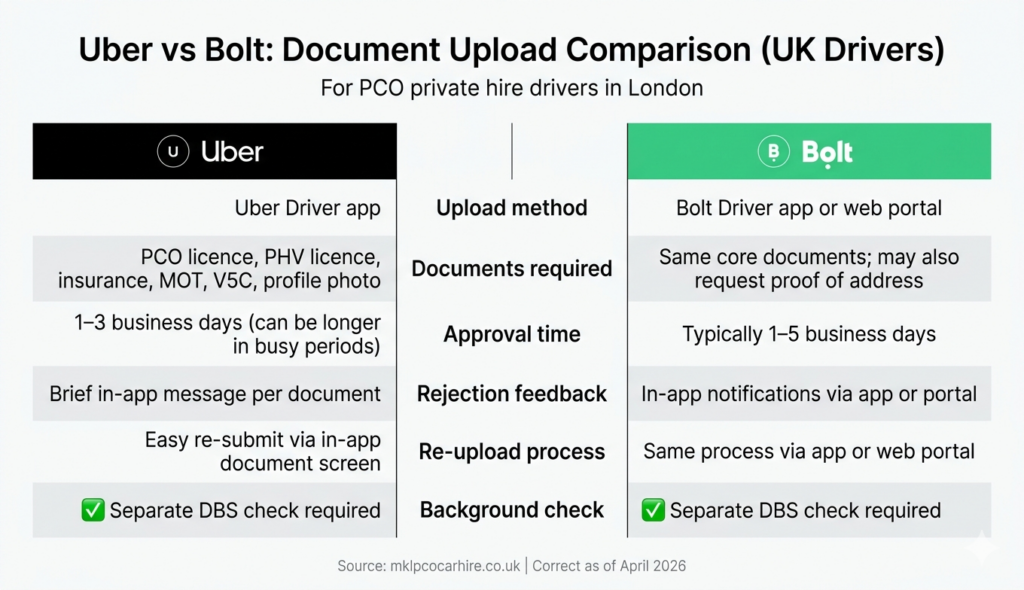
Key takeaway: The required documents are essentially the same for both platforms. The main differences are the interface and approval timelines. Many London drivers sign up for both simultaneously to maximise earnings from day one.
What If You Don’t Have a PCO-Approved Car Yet?
This is more common than you’d think. Plenty of drivers get their PCO licence approved — and even get verified on Uber or Bolt — before they’ve sorted a vehicle. Here are your main options:
Buy a car —Your car needs to be in good shape and meet TfL PCO requirements (usually less than 5 years old, 10 for electric or hybrid vehicles). Buying is cheaper overall, but more expensive initially, and you have maintenance costs.
Rent a PCO car — Many London drivers opt to rent through a specialist PCO car hire company. This gets you on the road quickly without a big capital outlay, and the vehicle is usually already licensed and insured for private hire work.
If you’re exploring the rental route, MKL PCO Car Hire is a London-based provider offering flexible hire options for Uber and Bolt drivers — worth a look if you want to get started without the hassle of buying straight away.
Conclusion
It may not be worrying to submit your PCO papers via Uber. If you have the right documents, enough photos, and the information is mainly correct, you're going to be fine.
Visit MKL PCO car Hire and book your first PCO car and start your journey.
Follow the steps in this article, check all the little boxes you may fill in, and you should be good to go. Good luck out there.
Related Posts
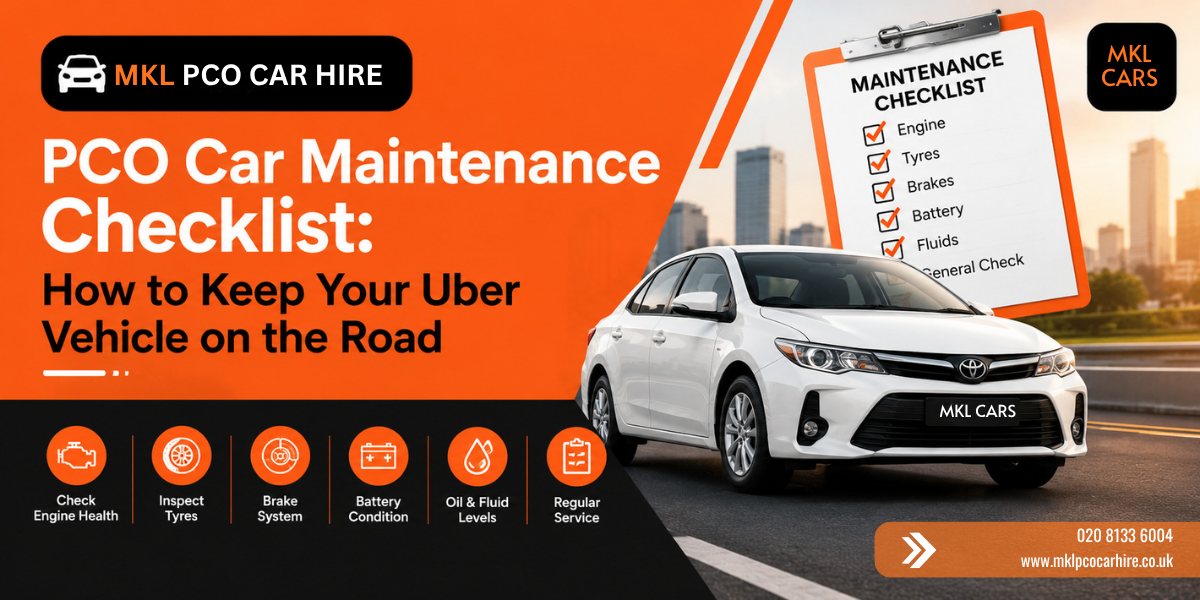
More miles, more passengers, more stop-start traffic through central London — a PCO vehicle works harder in a single week than mos

Thinking about driving PCO Car Hire in London? Before you sign up for a PCO car, it helps to know exactly where
Leave a Reply